How to Generate a Sales Report in ChannelSale
- Log in to your ChannelSale account.
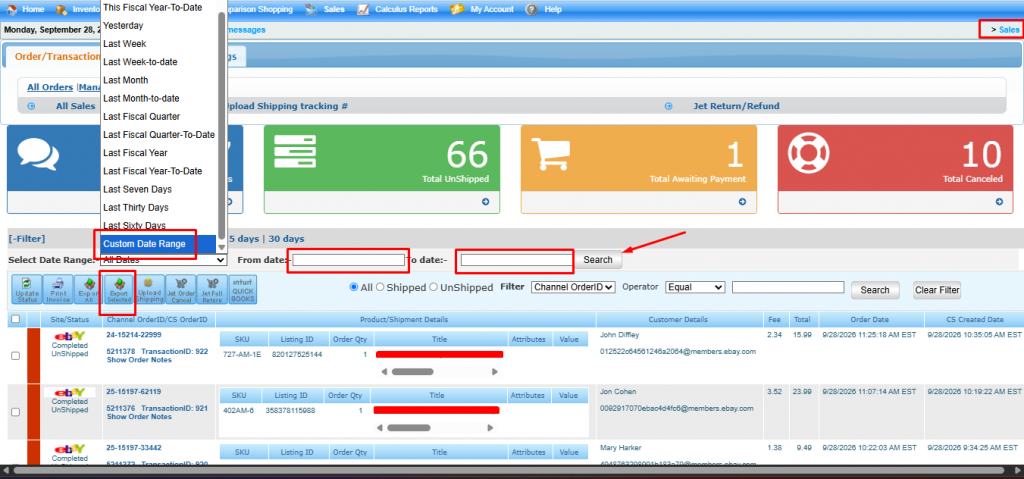
- From the top navigation menu, click Sales.
- Go to the All Orders section.
- In the Select Date Range dropdown, choose the required reporting period. Available options include:
- Custom Date Range
- For a specific period, select Custom Date Range.
- Enter the required From Date and To Date.
- Click Search to display the orders for the selected period.
- If required, use the filters to narrow the report by:
- All / Shipped / UnShipped
- Channel
- Order ID or other available fields
- After the required orders are displayed, use the export option:
- Export Selected – exports only the orders selected using the checkboxes.
- Export All – exports all orders displayed for the selected date range/filter.
- Save the exported file and use it as the Sales Report.