
This page covers the following sections:
-
- How to Install ChannelSale App from Shopify
- How to Import Products into ChannelSale via Shopify
- Global Field Mapping Field Values
- Inventory Page
- Home Page
Video - How to Install the ChannelSale App from Shopify
You can install ChannelSale directly from the Shopify App Store.
- Log in to your Shopify admin and select the store where you want to install ChannelSale.
- Go to the Shopify App Store and search for ChannelSale.
- Select ChannelSale – Sync Product Listings, Inventory, Orders on Multi-Marketplaces from the search results.
- Click Install.
- Review the permissions requested by ChannelSale and click Install app to authorize the integration.
- Once installed, Login to your ChannelSale Account from a separate browser and follow the steps mentioned in the next section: How to Import Products into ChannelSale
Direct link: Install ChannelSale from the Shopify App Store
Video - How to Import Products into ChannelSale
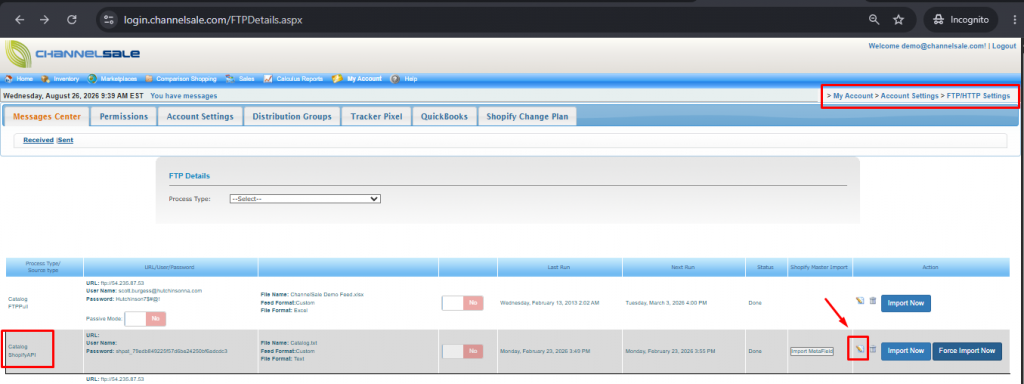
- Log in to your ChannelSale account and navigate to My Account → Account Settings → FTP/HTTP Settings.
- Locate the Catalog ShopifyAPI process type and click Edit on the right-hand side.
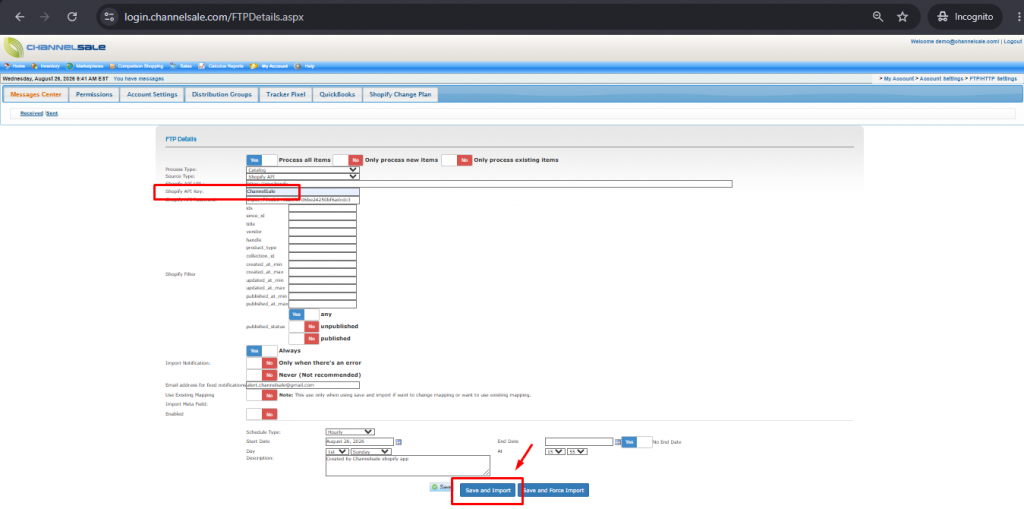
- In the Shopify API Key field, enter “ChannelSale”, then click Save and Import.
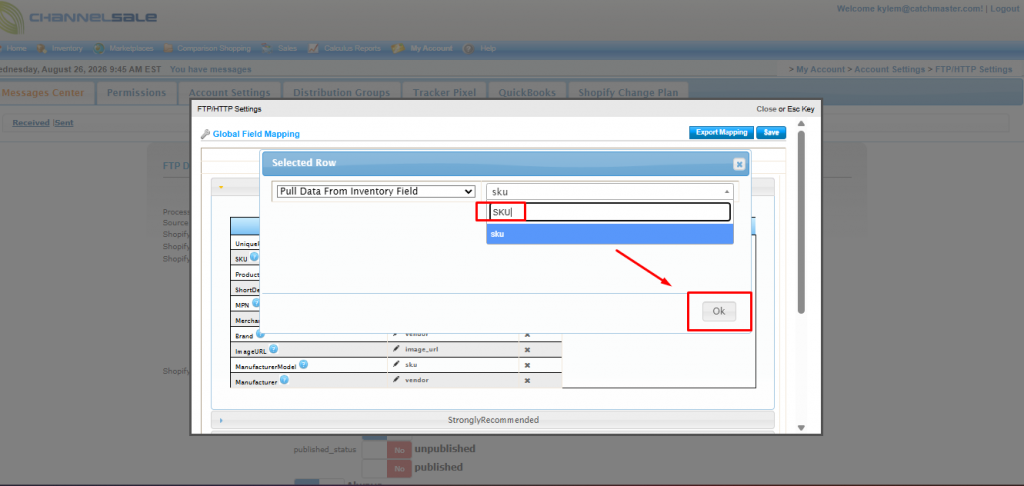
- The Global Field Mapping page will appear. Select the appropriate values from the dropdown menus for each field.
- Click Save to complete the field mapping and import your products.
- For details on the appropriate field-mapping values, refer to the next section, Global Field Mapping Field Values.
Global Field Mapping Field Values
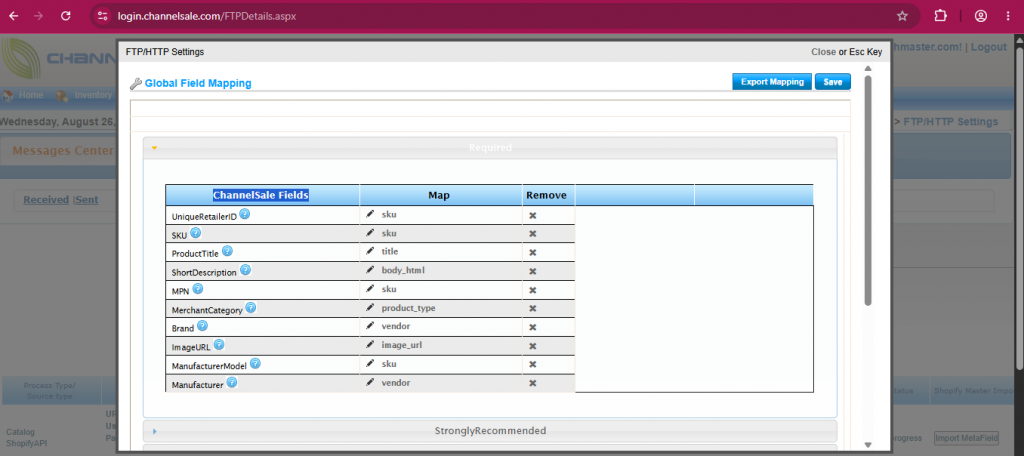
The following field mappings need to be configured manually. Click Edit for each field and select the corresponding value from the dropdown as shown below:
| ChannelSale Fields | Map |
| UniqueRetailerID | sku |
| SKU | sku |
| ProductTitle | title |
| ShortDescription | body_html |
| MPN | sku |
| MerchantCategory | product_type |
| Brand | vendor |
| ImageURL | image_url |
| ManufacturerModel | sku |
| Manufacturer | vendor |
Video - How to send Marketplace Orders to Shopify
Video - How to import Tracking Information from Shopify