
This page covers the following sections:
-
- How to Generate API Keys App from WooCommerce
- How to Import Products into ChannelSale via WooCommerce
- Global Field Mapping Field Values
- Inventory Page
- Home Page
How to Generate API Key from WooCommerce
WooCommerce uses REST API keys, consisting of a Consumer Key and Consumer Secret, to connect your store with external applications such as ChannelSale.
- Log in to your WordPress admin dashboard.
- From the left-hand menu, go to WooCommerce → Settings.
- Select the Advanced tab.
- Click REST API.
- Click Add Key or Create an API Key.
- In the Description field, enter a name such as ChannelSale.
- Select the appropriate User who will be associated with the API key.
- Under Permissions, select Read/Write if ChannelSale needs to retrieve and update your WooCommerce products, inventory, or orders.
- Click Generate API Key.
- WooCommerce will display the Consumer Key and Consumer Secret.
- Copy and securely save both keys immediately. The Consumer Secret is displayed only when the key is generated and cannot be retrieved later.
- Enter the Consumer Key and Consumer Secret, along with your WooCommerce store URL, in the ChannelSale integration settings.
How to Import Products into ChannelSale
How to Import Products into ChannelSale
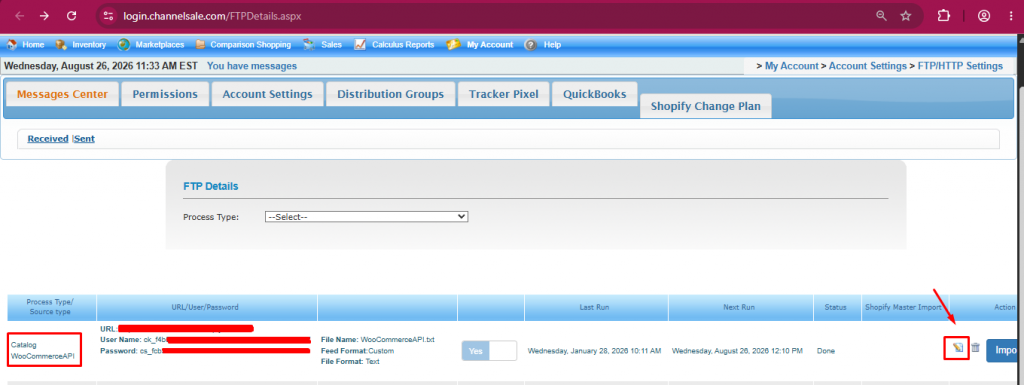
- Log in to your ChannelSale account and navigate to My Account → Account Settings → FTP/HTTP Settings.
- Locate the Catalog WooCommerceAPI process type and click Edit on the right-hand side.
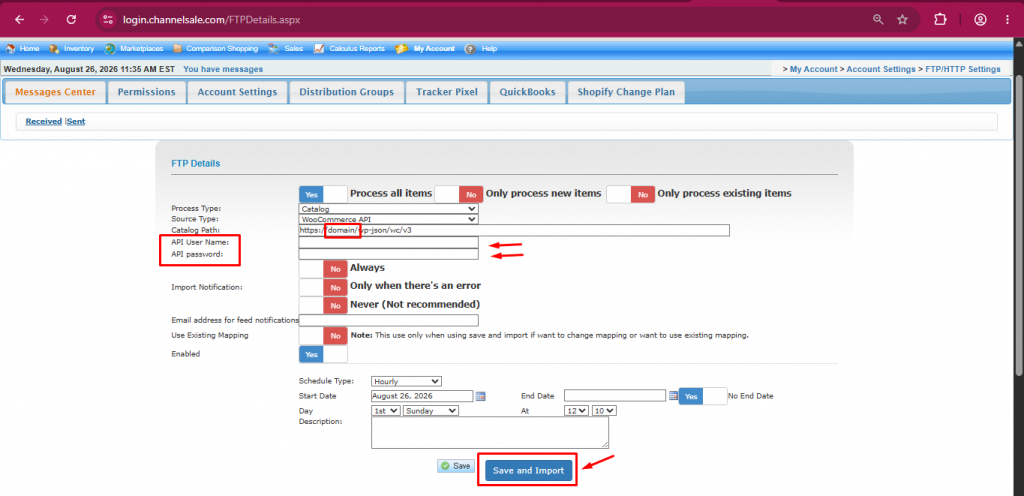
- Add the Consumer Key in the API User Name field and Consumer Secret in the API password field. Then click Save and Import.
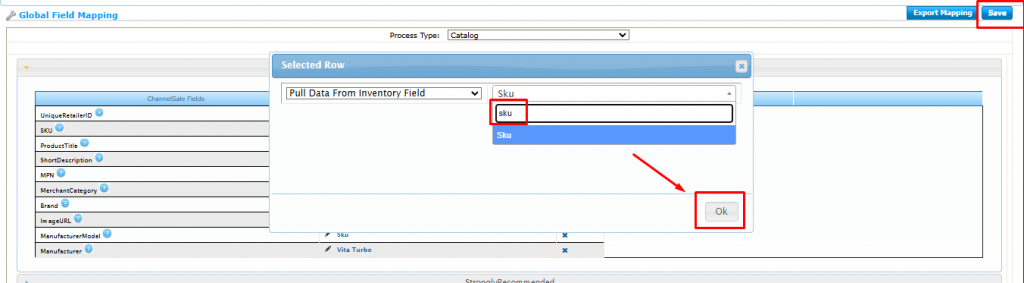
- The Global Field Mapping page will appear. Select the appropriate values from the dropdown menus for each field.
- Click Save to complete the field mapping and import your products.
- For details on the appropriate field-mapping values, refer to the next section, Global Field Mapping Field Values.
Global Field Mapping Field Values
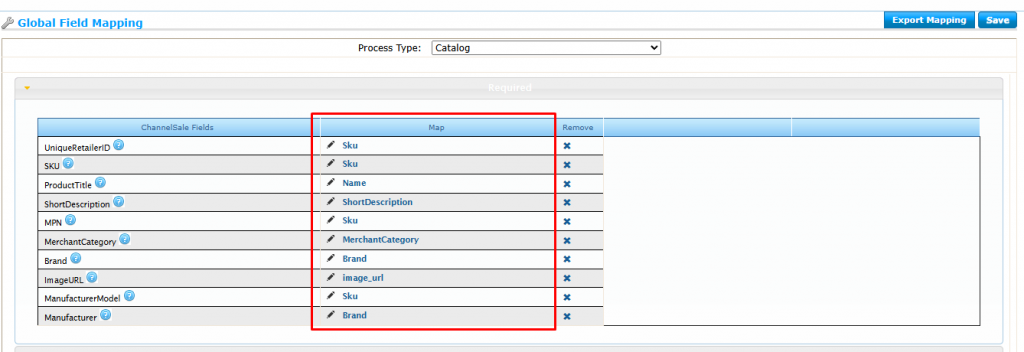
The following field mappings need to be configured manually. Click Edit for each field and select the corresponding value from the dropdown as shown below:
| ChannelSale Fields | Map |
| UniqueRetailerID | sku |
| SKU | sku |
| ProductTitle | Name |
| ShortDescription | ShortDescription |
| MPN | sku |
| MerchantCategory | MerchantCategory |
| Brand | Brand |
| ImageURL | image_url |
| ManufacturerModel | sku |
| Manufacturer | Brand |
How to Set Up WooCommerce Order Sync in ChannelSale
Follow the steps below to configure WooCommerce Order Sync in ChannelSale and send marketplace orders to your WooCommerce store.
Step 1: Open FTP/HTTP Settings
Log in to your ChannelSale account and navigate to:
My Account → Account Settings → FTP/HTTP Settings
Step 2: Configure Order Export
Select Order Export as the Process Type and enter the following details:
| Field | Details |
| Source Type | WooCommerce Order Export |
| FTP Address | WordPress URL |
| User Name | Consumer Key |
| Password | Consumer Secret |
| Filename | woocommerceorder_OrderExport.txt |
| File Format | Microsoft Excel |
| Delimiter | Semicolon |
| Enable | Yes |
| Order Status | Unshipped |
| Channels | Select the marketplaces from which orders should be sent to WooCommerce |
| Cutoff Date | Enter the date from which you want orders to be sent to WooCommerce |
Step 3: Save the Settings
Review the configuration and click Save.
Once saved, ChannelSale will export eligible unshipped marketplace orders to WooCommerce based on the selected channels and cutoff date.