
This page covers the following sections:
-
- Steps to Add eBay API Details in ChannelSale
- How to create eBay Inventory/Price Template
- How to create eBay InventoryPrice Feed
- How to setup eBay Order import
- How to setup eBay Tracking Export
Video - Steps to Add eBay Token in ChannelSale
Steps to Add eBay Token in ChannelSale
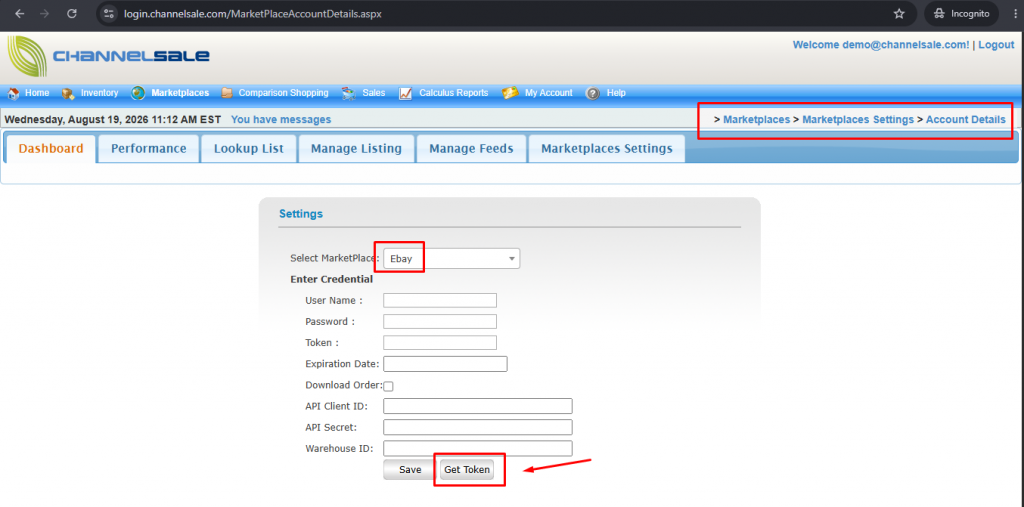
- Log in to your ChannelSale account.
- Navigate to Marketplaces → Marketplace Settings → Account Details.
- Select the appropriate eBay marketplace/country (for example, eBay).
- Click on Get Token.
- You will be redirected to your eBay Seller Central account, where you need to authorize ChannelSale as a developer/application.
- Once ChannelSale has been successfully authorized, you will be redirected back to the ChannelSale Account Details page.
- Verify that the eBay account/token details have been populated successfully.
- Save the settings and proceed with the eBay marketplace configuration.
This authorization flow is consistent with eBays OAuth process, where the seller grants permission to an application and eBay returns authorization information that the application uses to obtain the required tokens.
Video - How to Create an eBay Inventory/Price Template in ChannelSale
How to Create an eBay Inventory/Price Template in ChannelSale
Follow the steps below to create and configure an eBay Inventory/Price Template in ChannelSale.
Step 1: Open Marketplace Settings
- Log in to your ChannelSale account.
- Navigate to Marketplaces from the top menu.
- Select Manage Feeds → Templates.
- Open eBay Posting Template.
Step 2: Create a New Template
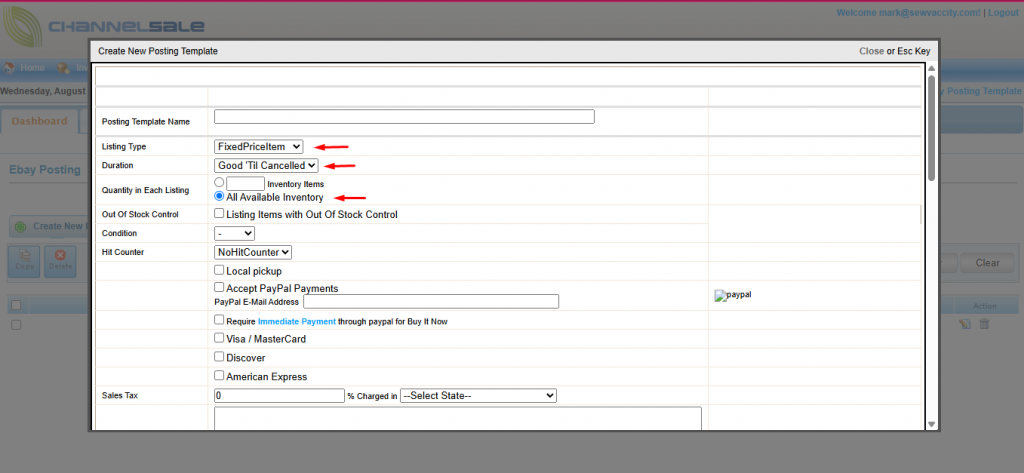
- Click Create New Posting Template.
- Wait for the eBay template fields to load.
Step 3: Configure the Template Fields
Configure the below available eBay posting fields as required:
- Listing Type
- Duration
- Quantity in Each Listing
Select the appropriate value for each field based on your eBay listing requirements.
Step 4: Save the Template
- Review the template to ensure all required fields are configured correctly.
- Click Save at the top-right corner of the Create New Posting Template window.
- The eBay Inventory/Price Template will be saved and added to the Marketplace Mapping Template list.
Important Notes
- Ensure your eBay account is connected and active in ChannelSale before creating the template.
- Select the appropriate Listing Type based on how you want products to be listed on eBay.
- Configure the Duration carefully, as it determines how long the listing remains active.
- Set Quantity in Each Listing according to your inventory and listing strategy.
- Make sure all required fields are configured before saving the template.
- Review the template settings carefully to avoid incorrect listing configurations or inventory quantities being sent to eBay.
- After saving, verify that the template appears correctly under the Marketplace Mapping Template list.
- It is recommended to test the template with a small number of products first before applying it to your full catalog.
How to Create an eBay Inventory/Price Feed in ChannelSale
Follow the steps below to create and configure an eBay Inventory/Price Feed in ChannelSale.
Step 1: Open Marketplace Settings
- Log in to your ChannelSale account.
- Navigate to Marketplaces from the top menu.
- Select Manage Feeds.
- Open Feeds.
Step 2: Create a New Feed
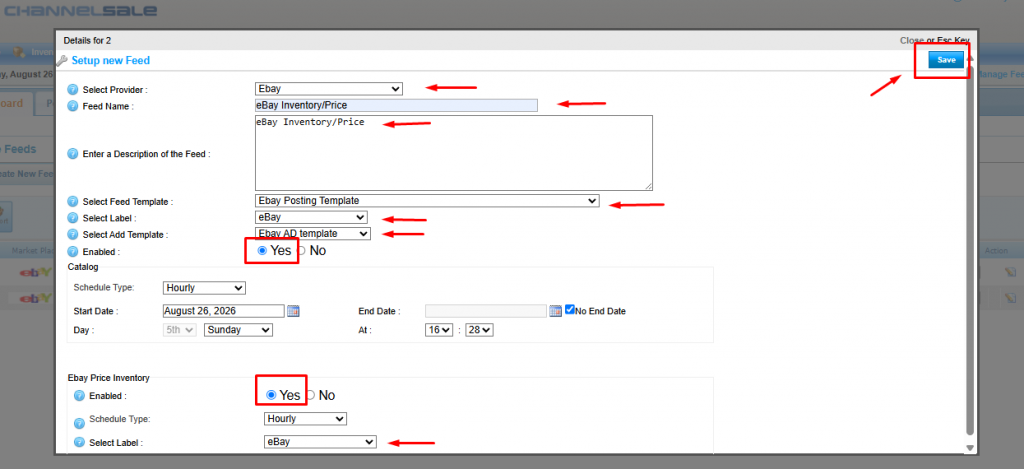
- Click Create New Feed.
- In the Provider dropdown, select eBay.
- In the Feed Name field add the value eBay Inventory/Price.
- In the Enter a Description of the Feed field add the value eBay Inventory/Price.
- In the Select Feed Template dropdown, select eBay Posting Template.
- In the Select Label dropdown, select the Label you wish to use (Refer to article on How to create a label).
- In the Select Add Template dropdown, select eBay AD Template.
- Enable the Feed by selecting the Yes option and Click Save at the top-right corner of the Setup New Feed window.
Important Notes
- Make sure your eBay Seller Central account is already connected and active in ChannelSale before creating the inventory feed.
- In Select Feed Template, ensure you select eBay (Inventory). Selecting a different feed template may result in incorrect feed processing.
- Select the appropriate Label carefully, as the label determines which products/SKUs will be included in the eBay Inventory/Price Feed.
- Verify that all products assigned to the selected label have the required SKU and inventory information configured correctly.
- Select Yes to enable the feed before clicking Save.
- After saving, review the feed configuration under Manage Feeds → Feeds Marketplace Mapping to confirm that the feed is active and configured correctly.
- It is recommended to test the feed with a small set of products first and review the feed results for any errors before using it for your complete catalog.
- Keep the feed enabled only after confirming that the inventory quantities being sent to eBay are accurate.
How to Set Up eBay Order Import
Follow the steps below to enable eBay order import in ChannelSale:
- Log in to your ChannelSale account.
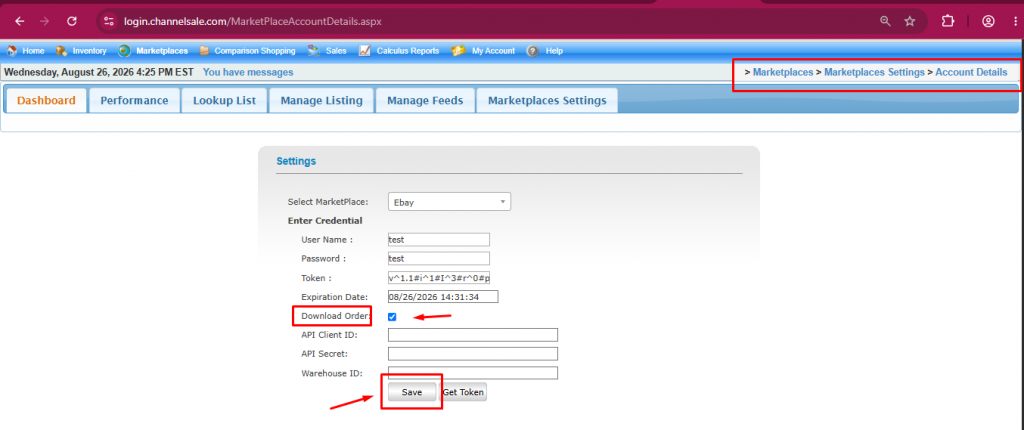
- Navigate to Marketplaces → Marketplace Settings → Account Details.
- Locate your eBay account setup.
- Click the Edit option on the left side of the eBay setup.
- Select the checkbox for Download Order.
- Review the settings and click Save to apply the changes.
- Once enabled, ChannelSale will begin importing eligible eBay orders based on the configured synchronization settings.
Important Notes
- Ensure your eBay Seller Central account is connected and active in ChannelSale before enabling order import.
- After enabling the setting, monitor the first few order imports to confirm that orders are being received correctly in ChannelSale.
- Check that imported orders contain the required information, including SKU, quantity, customer/order details, shipping information, and order status.
- Avoid manually importing the same orders multiple times, as this may result in duplicate order records depending on the configured workflow.
- If orders are not appearing, verify the eBay account connection, order-import settings, synchronization status, and any available error logs.
- Do not enable order import until your product/SKU mapping is configured correctly, so imported orders can be associated with the appropriate products.
How to Set Up eBay Tracking Export
eBay Tracking Export is enabled by default in ChannelSale. When enabled, ChannelSale can send shipment tracking information back to eBay for imported and fulfilled orders.
Important Note
- Tracking Export is enabled by default, so no additional setup is required in most cases.
- If you do not want ChannelSale to send tracking information to eBay, disable the Download Order option in the eBay account settings.
- To disable order downloading, follow the steps provided in How to Set Up eBay Order Import:
Marketplaces → Marketplace Settings → Account Details → eBay → Edit → Uncheck Download Order → Save. - Before disabling this option, ensure that doing so aligns with your overall order and fulfillment workflow.
- After enabling the feature, verify that tracking information is being successfully updated on eBay after an order is shipped.