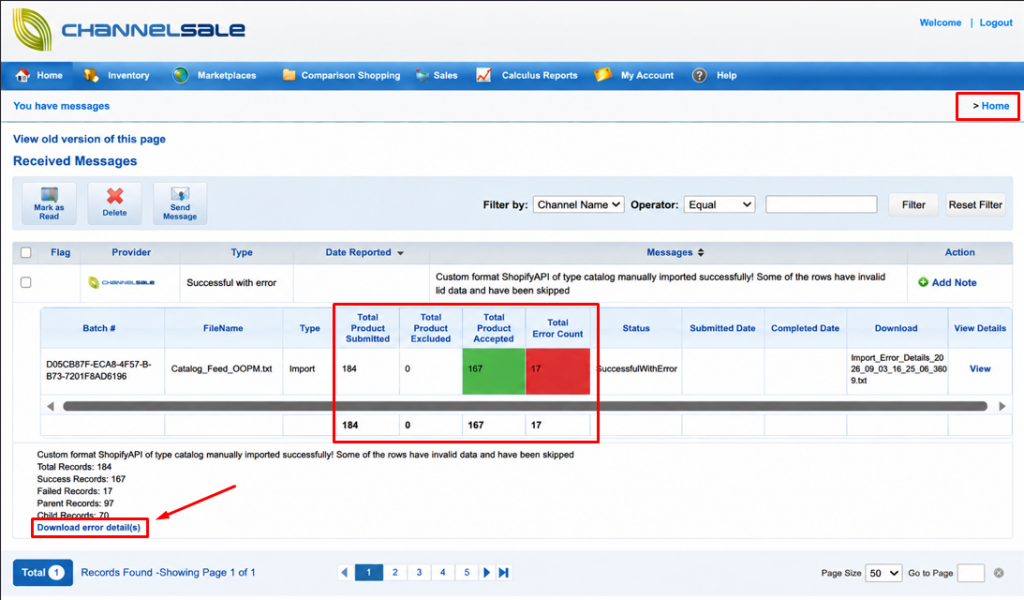
How to Check Feed Import Reports from the Home Page
Overview
After importing products from your source, ChannelSale provides Feed Import Reports to help you verify whether products were imported successfully and identify any products that require attention.
Follow the steps below to access the report directly from the ChannelSale Home Page.
Step 1: Log in to ChannelSale
Log in to your ChannelSale account and navigate to the Home page.
Step 2: Locate the Feed Import Section
From the Home page, locate the Feed Import section/card.
This section provides an overview of your latest product import activity.
Step 3: Open the Feed Import Report
Click View Report / Import Report from the Feed Import section.
The report will display the results of the latest product import.
Step 4: Review Import Results
Review the report to check the status of your product import.
The report may include:
- Total Products – Number of products processed from the source.
- Successfully Imported – Products successfully imported into ChannelSale.
- Failed/Rejected Products – Products that could not be imported.
- Warnings – Products imported with issues that may require attention.
- Error Details – Information explaining why a product failed to import.
Step 5: Review Failed Products
If the report shows failed or rejected products, click on Download error detail(s) to identify the issues.
Common issues may include:
- Missing SKU
- Missing required product information
- Invalid product data
- Duplicate products
- Missing or incorrect field values
Make the required corrections in the sourece and run the import again, if applicable.
Step 6: Verify the Import
After resolving any errors, verify the report again to confirm that the products have been successfully imported.
Tip: Always review the Feed Import Report after the import to ensure that all expected products were processed successfully.