How to Check Feeds Posting Reports from the Home Page
Overview
After submitting product feeds to your marketplaces, ChannelSale provides Feeds Posting Reports to help you verify whether products were posted successfully and identify any products that require attention.
Follow the steps below to access the report directly from the ChannelSale Home Page.
Step 1: Log in to ChannelSale
Log in to your ChannelSale account and navigate to the Home page.
Step 2: Locate the Feed Posting Section
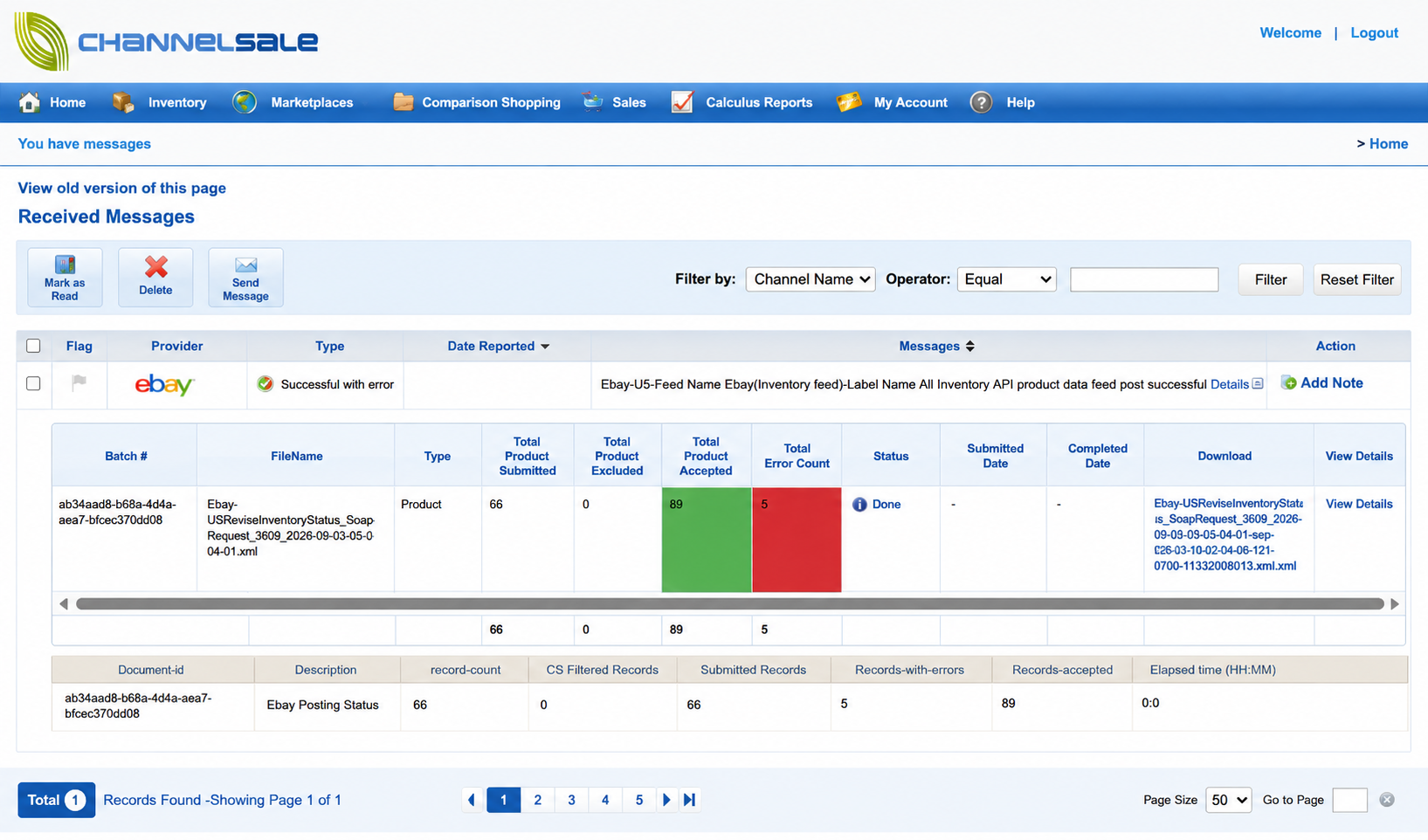
From the Home page, locate the Received Messages section.
This section provides an overview of your latest marketplace feed posting activity.
Step 3: Open the Feeds Posting Report
Locate the relevant marketplace feed posting message and click Details in the Messages column.
The detailed feed posting report will appear below the message.
Step 4: Review Posting Results
Review the report to check the status of your feed submission.
The report may include:
- Batch # – Unique identifier for the feed submission.
- FileName – Name of the feed file submitted.
- Type – Type of feed submitted, such as Product.
- Total Product Submitted – Number of products included in the feed.
- Total Product Excluded – Number of products excluded from the feed.
- Total Product Accepted – Number of products accepted by the marketplace.
- Total Error Count – Number of products that encountered errors.
- Status – Overall status of the feed posting.
- Submitted Date – Date and time when the feed was submitted.
- Completed Date – Date and time when feed processing was completed.
The summary section may also display Submitted Records, Records-with-errors, Records-accepted, and other feed-processing information.
Step 5: Review Posting Errors
If the report shows errors, click View Details to review the available error information.
Common issues may include:
- Missing required marketplace fields
- Invalid product information
- Incorrect category or attribute mapping
- Invalid SKU or product identifiers
- Marketplace-specific validation errors
Make the required corrections in the source or marketplace configuration and submit the feed again, if applicable.
Step 6: Download the Report
Click Download to download the feed posting report or error details for further review.
Tip: Always review the Feeds Posting Report after submitting a feed to ensure that your products were processed successfully and to quickly identify any posting errors.